




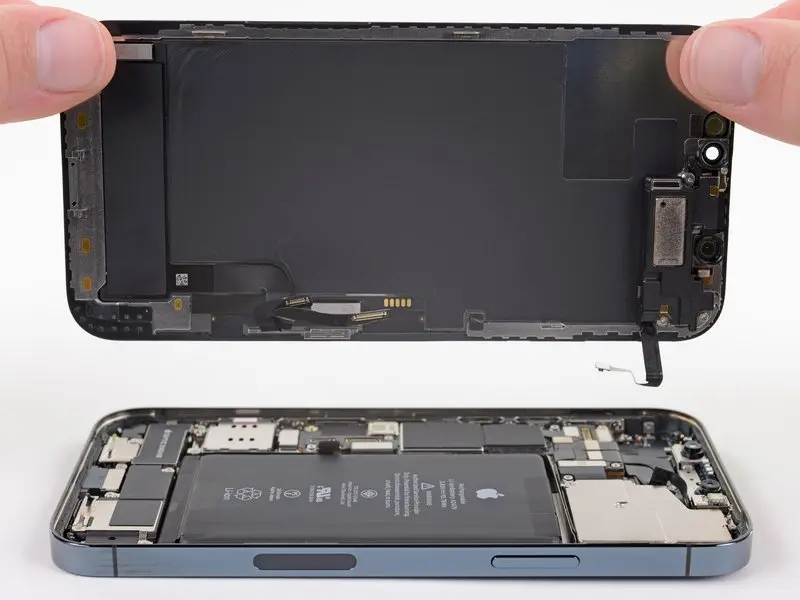
If your iPhone 12 Pro screen is cracked, unresponsive to touch, or doesn’t display an image when the phone powers on, use this guide to restore your iPhone to normal operation via the new screen (also known as the display component).
The combined earpiece speaker + sensor assembly, mounted on the back of the display, is factory-paired with your individual iPhone, so it must be transferred from the old display to the new one when you replace any display. It contains a flood illuminator, which is part of the biometric Face ID security feature.
If this component is damaged or replaced, Face ID will not work. Therefore, handle this process with extreme care to avoid damaging these components. If the component is damaged, only Apple or an Apple Authorized Service Provider can restore Face ID functionality.
Note: In iOS 17.6 and earlier, True Tone and Auto Brightness will be disabled after screen replacement, even with an original Apple screen. Additionally, Face ID will be disabled unless the iPhone is running iOS 15.2 or later. In iOS 18 and later, you can use Apple’s Repair Assistant to calibrate a new screen, thereby restoring True Tone display on a genuine screen purchased from Apple.
Step 1:Pentalobe Screws
Before beginning, discharge your iPhone’s battery below 25%. A charged lithium-ion battery can catch fire and/or explode if accidentally punctured.
Power off your iPhone before beginning disassembly.
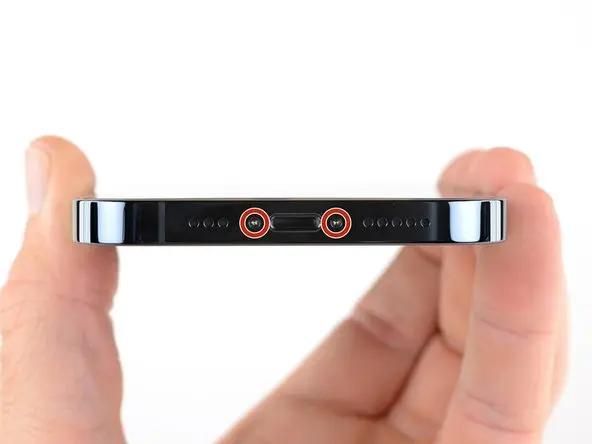
Remove the two 6.7 mm long pentagram screws on the bottom edge of the iPhone.
Step 2: Use a suction cup
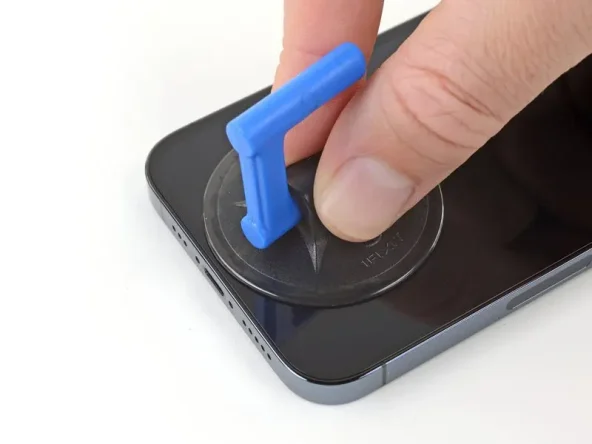
If you’re using a single suction cup, apply it to the bottom edge of the phone, as close to the edge as possible.
Step 3: Gently lift the screen
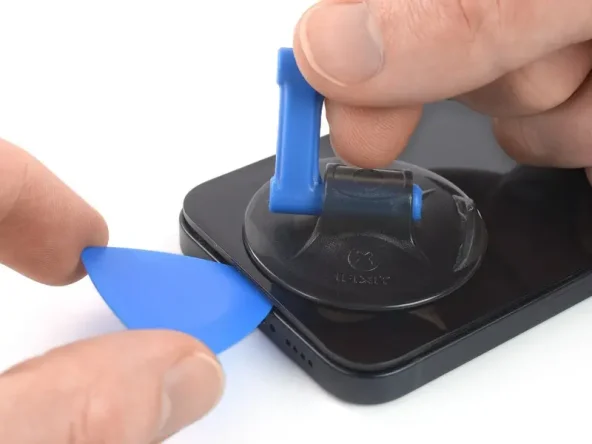
Apply firm, constant pressure upwards to the suction cup, creating a tiny gap between the screen and the back cover.
Insert the pry tool into the gap below the plastic bezel of the screen.
The waterproof adhesive holding the monitor in place is very strong; creating this initial gap requires considerable force.
If you have difficulty opening the gap, apply more heat and then gently shake the screen up and down to weaken the adhesive until a sufficient gap is created to insert the pry tool.
Step 4: Heat the right edge
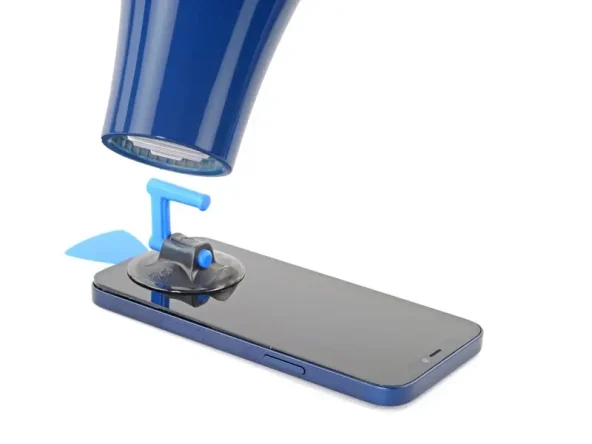
Heat the right edge of your iPhone (the side with the power button) with a hairdryer or heat gun for 90 seconds, or until the screen is slightly warm and untouchable.
Step 5: Separate the adhesive on the right.
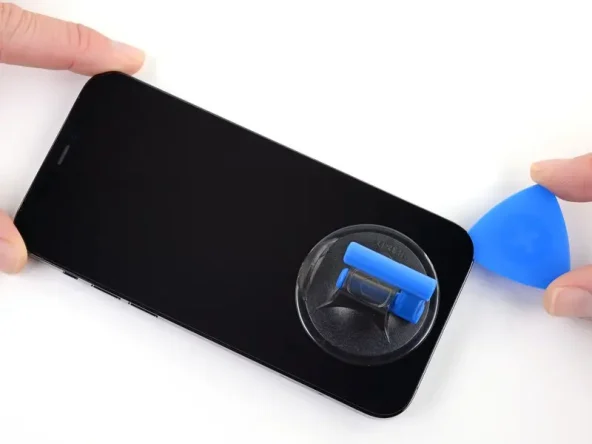
Insert the pry tool into the bottom right corner of the iPhone to loosen the adhesive.
Slide the pry tool along the right edge to the top right corner.
Do not insert the pry tool more than 3 mm into the iPhone, as this may damage internal components.
Leave the pry tool in the top right corner before proceeding to the next step.
Step 6: Separate the adhesive on the left side
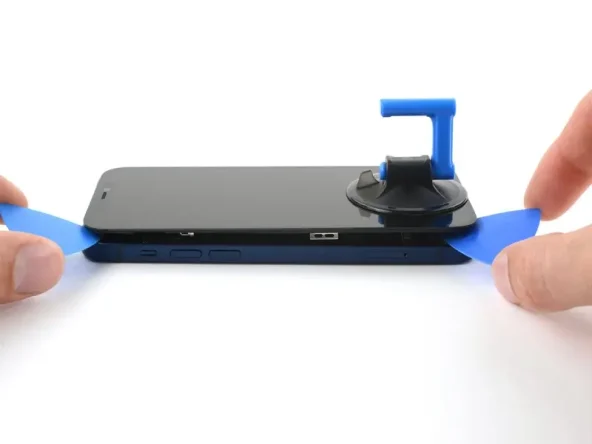
Insert the second open plastic triangular piece into the bottom left corner of the iPhone.
Twist both open plastic pieces simultaneously until the left latch comes loose.
Apply torque gradually.
If you have difficulty separating the adhesive, reheat the left edge.
Step 7: Separate the adhesive on the left side.
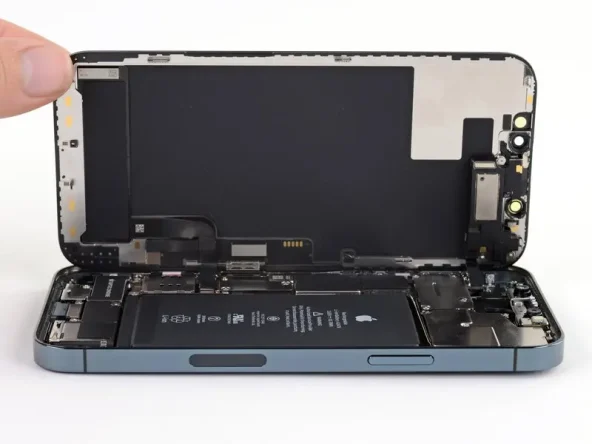
Rotate your iPhone so that the right edge faces you.
Rotate the display upwards from the right, like a book cover, to open the iPhone.
Do not attempt to completely detach the display, as several fragile ribbon cables still connect it to the iPhone’s motherboard.
While working on the phone, lean the display against something for support.
During reassembly, position the display in place, align the retaining clips along the top edge, and carefully press the top edge into place before securing the rest of the display downwards. If it doesn’t snap into place easily, check the condition of the clips around the display perimeter and ensure they are not bent.
Step 8: Unscrew the battery and the display screen.
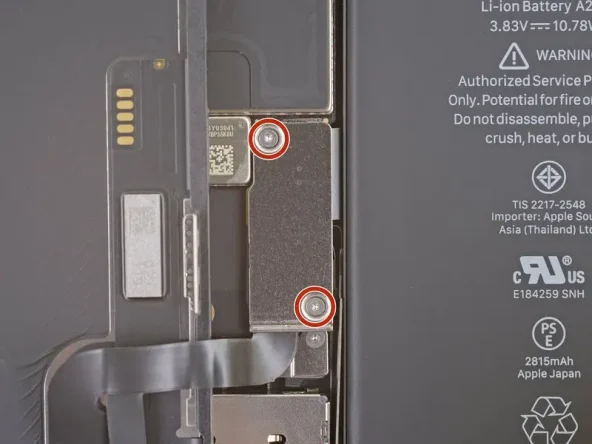
Remove the two 1.1mm Y000 screws to secure the battery and display interface cover.
Throughout the repair process, pay close attention to each screw and ensure it is accurately returned to its original position to avoid damaging your iPhone.
This is a good time to open the iPhone and test all functions during reassembly before resealing the display. Make sure the iPhone is completely powered off before continuing.
Step 9: Disconnect the battery
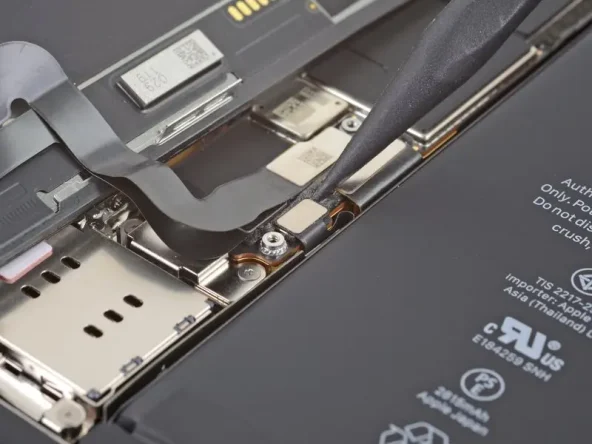
Use a pry bar or clean fingernail to pry the battery connector upwards from the slot on the motherboard.
Try not to damage the black silicone seals around this circuit board and other circuit board connections. These seals provide extra protection against water and dust.
Bend the connector slightly away from the motherboard to prevent it from accidentally contacting the socket and powering the phone during repairs.
Step 10: Disconnect the display cable
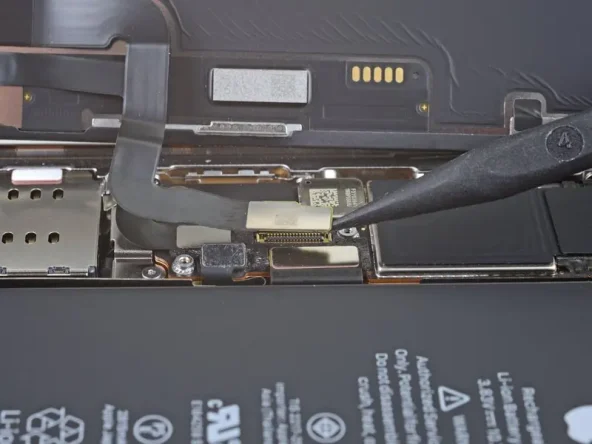
Disconnect the display cable connector using a pry bar or your fingernail.
To reconnect such a crimp connector, carefully align and press down on one side until it clicks into place, then repeat on the other side. Do not press down on the middle. If the connector is misaligned, the pins will bend, causing permanent damage.
Step 11: Remove the display assembly
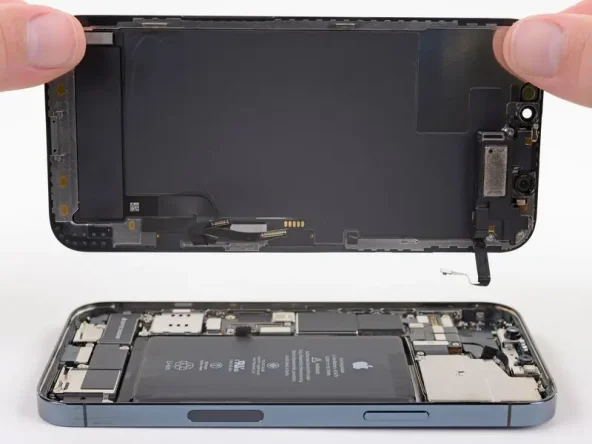
Remove the display unit.
If you need to replace the waterproof adhesive around the edges of the display during reassembly, please pause here.


